How to make one QR code for both app stores
On this page
A QR code on a poster, a flyer, a product box or a slide is one of the few ways to get someone from the physical world into your app in a single step. The catch: your app lives in two stores, and a QR code holds one address. Print the App Store link and every Android phone that scans it hits a dead end. Print two codes side by side and people scan the wrong one, or neither.
The answer is one code that opens the right store for whoever scans it. Here's how that works, how to make one, and what to check before anything goes to the printer.
One code, two stores
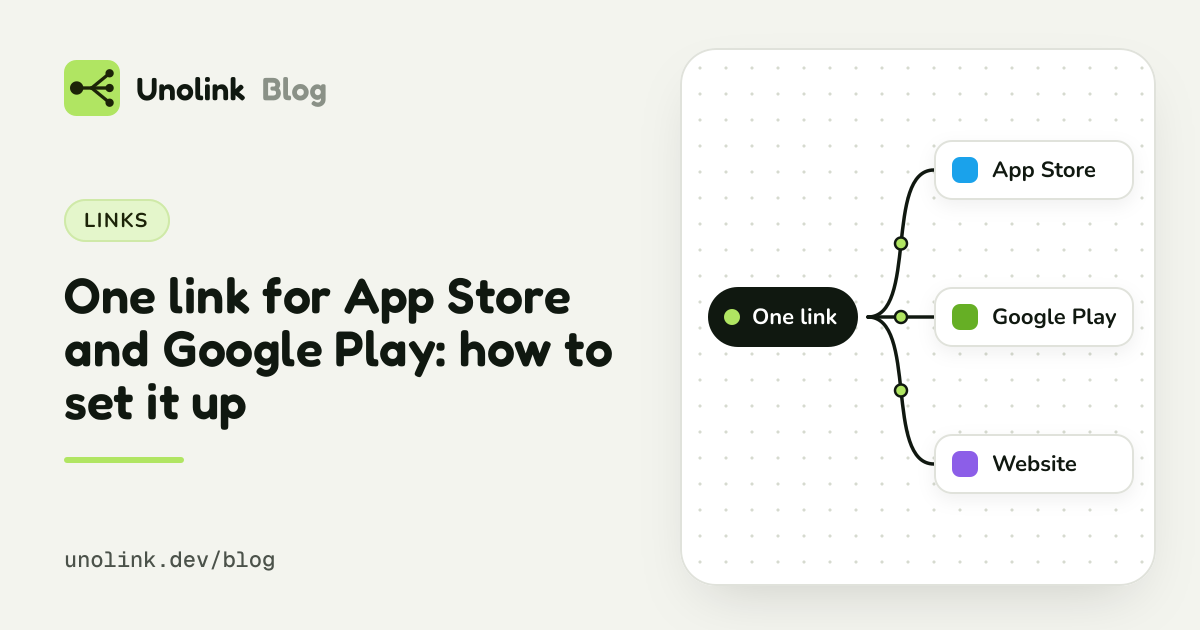
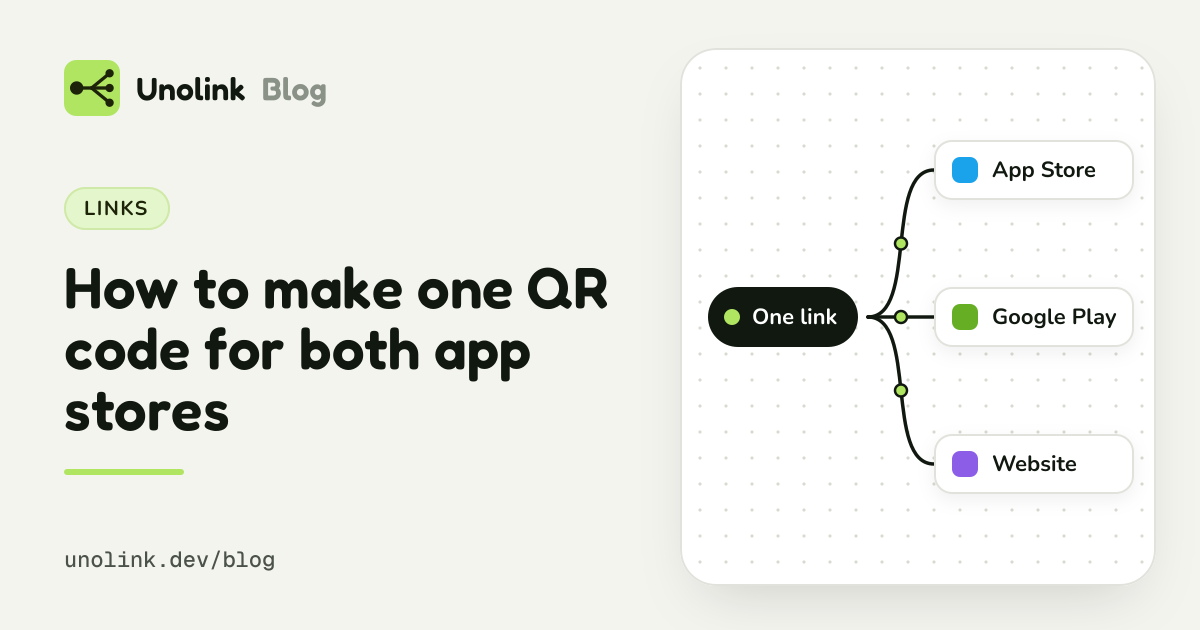
A QR code is just a way of writing text, almost always a web address, so that a camera can read it. It has no idea what phone is scanning it. The trick is in the address, not the code: point the code at a smart link, an address that looks at the device opening it and redirects to the matching store.
- An iPhone scans, opens the link, and lands on your App Store page.
- An Android phone scans, opens the same link, and lands on your Google Play page.
- Anyone else (a laptop with a QR reader, an unusual device) goes to your website.
- App StoreiPhone
- Google PlayAndroid
- Your websiteAnything else
From the scanner's point of view, it simply works. For more on smart links and how to set one up, see One link for App Store and Google Play.
Static or dynamic: decide before you print
You'll see two kinds of QR code offered:
- Static: the code contains the final address directly, such as your App Store URL. It can never change. If the address changes, or you want to send people somewhere else, you reprint.
- Dynamic: the code contains a short address you control, which redirects to the real destination. You can change where it goes at any time, and because every scan passes through the redirect, scans can be counted.
Make one in five steps
- Collect your two store addresses. App Store:
https://apps.apple.com/app/id1234567890(your Apple ID from App Store Connect, no country in the path). Google Play:https://play.google.com/store/apps/details?id=com.example.app. Open both on a phone to check them. - Create a smart link that routes iPhone to the first and Android to the second, and add your website for everyone else.
- Make a separate link for each placement you want to measure. The poster in the gym, the flyer at the conference and the sticker on the packaging each get their own link, so each gets its own scan count.
- Generate the code from that link and export it in a format your printer can use: SVG or PDF for anything large, PNG for screens and documents.
- Test it on an iPhone and an Android phone, with the built-in camera app, from the distance and angle people will actually scan from.
Doing it with Unolink
Every Unolink app comes with a smart link, go.unolink.dev/yourapp, and a QR code for it:
- On every plan, Free included: a basic QR code for your app's main link, as PNG or SVG. Its scans are counted as clicks on the main link.
- On Indie and up: tracked QR codes, each with its own link, so a code's scans are counted on their own (and in the app's totals). Make one per poster, event or packaging run.
- Styled codes (Indie and up): your logo in the middle, dot and corner shapes, colours and gradients, and a frame with a call to action such as "Scan to download".
- Print-ready vector PDF (Indie and up) alongside PNG at any size and SVG.
Indie is $6 a month, with the price on the page, so a single print run doesn't need a QR subscription of its own. The smart link, the codes and the scan numbers all live in one place.
A tracked code's address follows its name until its first scan, and is fixed from then on, so a printed code can't be broken by renaming it later. Destinations can still change: update the store addresses on the app and every code follows.
If a code is for an ad or a poster where you want to make a pitch first, switch on a landing page for its link (Indie and up): people see your app's icon, rating, screenshots and one store button before the store. On a computer, that page shows both store buttons and its own QR code to scan with a phone.
Printing: what actually goes wrong
QR codes are robust, but print and placement break them more often than software does.
- Contrast. Dark code on a light background. Light-on-dark codes and low-contrast brand colours fail on some phones. Test your exact colours, printed, not on screen.
- Size and distance. A common rule of thumb is that a code should be about a tenth of the scanning distance wide: roughly 2 to 3 cm for something held in the hand, much larger for a poster across a room. Test from where people will stand.
- The quiet zone. Leave an empty margin around the code, about four modules (the small squares) wide. Text, borders and images that crowd the edge stop cameras from finding it.
- The logo. A logo in the middle works because QR codes carry error correction, but it has limits. Keep the logo small, and test again after adding it.
- Surfaces. Glossy laminate reflects light; curved bottles and cans distort the code. Test on the real material.
- Say what it does. A code with no text gets fewer scans. "Scan to get the app" or "Download free on iPhone and Android" under or around it tells people what they'll get.
- Shorter is easier. The longer the address inside the code, the denser the code, and dense codes are harder to scan from a distance. Short links make cleaner codes.
Measuring scans properly
A scan count per code tells you which placements people notice. Two habits make those numbers useful:
- One code per placement. If the same code is on the poster, the flyer and the box, you'll never know which one worked.
- Look past the scan. A scan becomes a store visit, then maybe an install, then maybe a paying user. With the Unolink SDK in your app (Pro and up), you see which code brought each install, without fingerprinting, and each code's link shows its onboarding, paywall views and purchases, not only scans. That's how you find out the conference flyer brought ten subscribers while the gym poster brought two hundred scans and no one who stayed.
Bots don't scan posters, but they do open links that get shared in chats. Known bots and link previews are never sent to a store and never counted, so your scan numbers stay about people.
Share this article